
How Rubber Bands works.
A tour of every part of the app, with screenshots. Start at the top if you are new, or jump straight to the thing you are trying to do.
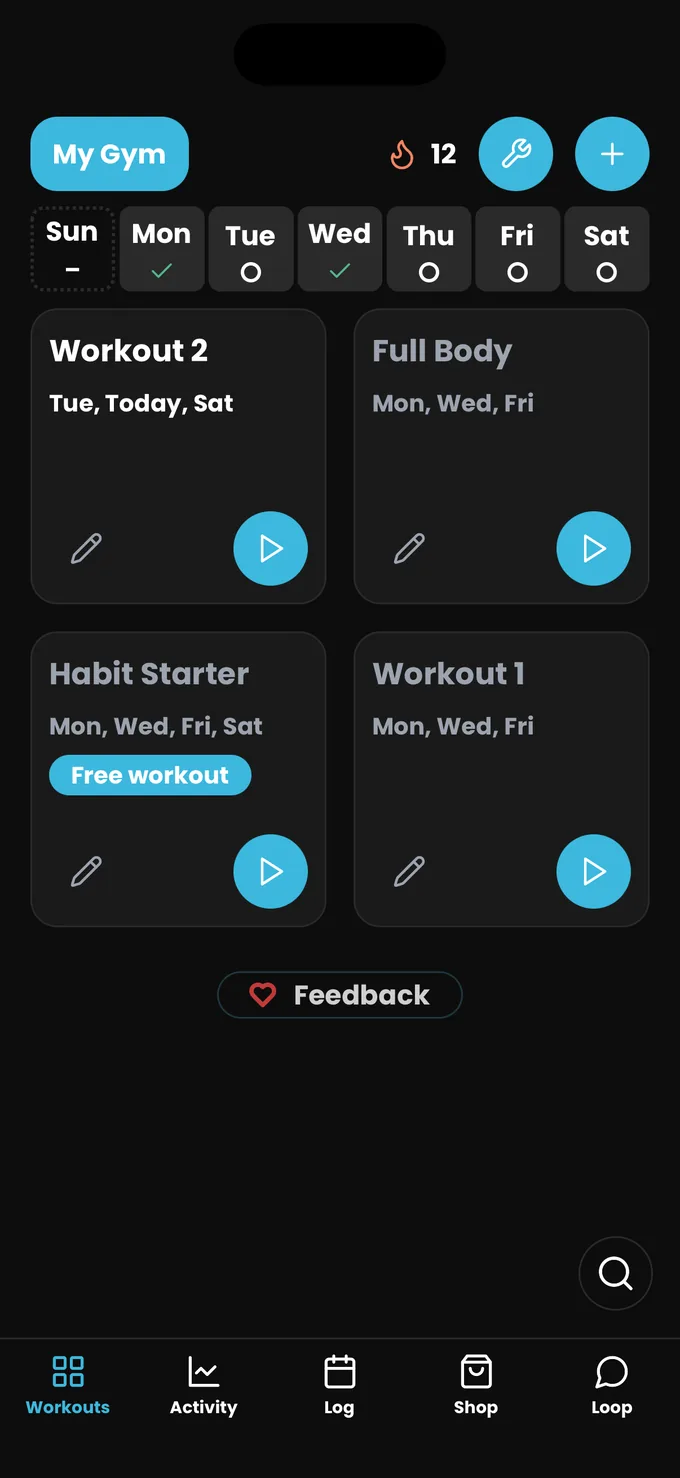
Four tabs, and a wrench.
The first launch asks a few questions about your goal, your equipment and the days you want to train, then builds a starting schedule. After that, everything lives behind four tabs at the bottom of the screen, plus the wrench in the top right, which is where the app itself is configured.
- Answer the setup questions. Units, fitness goal, the equipment you own, and how many days a week you want to train. Your age, height and weight stay on the device and are only used to size your workouts.
- Add your bands. Nothing works properly until the app knows what resistance you actually have.
- Pick a plan or let it build one. Follow a named plan, choose the muscles you want to hit, or write your own workout.
- Tap a workout, then Tap to start. That is the whole loop from here on.
Workouts
Home. Today's scheduled workouts, your streak badge, and the plus button for adding a workout, a band or an accessory.
Activity
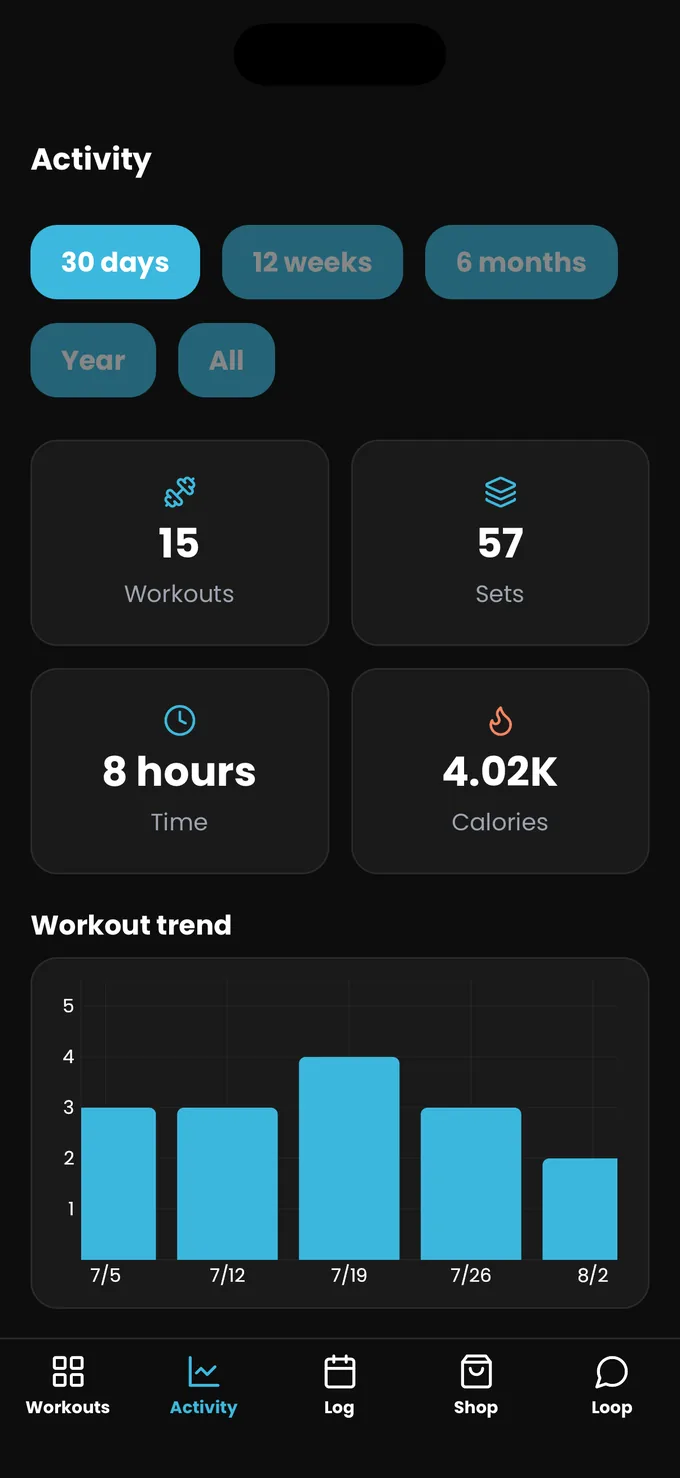
Your progress dashboard: workouts, sets, time, calories, muscle coverage, records and streaks.
Log
Every session you have finished, newest first, with duration and effort. Tap one to share it, or edit and delete from the row menu.
The wrench
Not a tab. The wrench in the top right of the Workouts tab is where the app is configured: your bands, exercises, gym profiles, units, theme, reminders and CSV backups all live there.
Four ways to get a workout.
Tap the plus button on the Workouts tab, then Add Workout. The builder offers four routes, and you can mix them freely. Nothing stops you following a plan on three days and running your own custom session on the fourth.
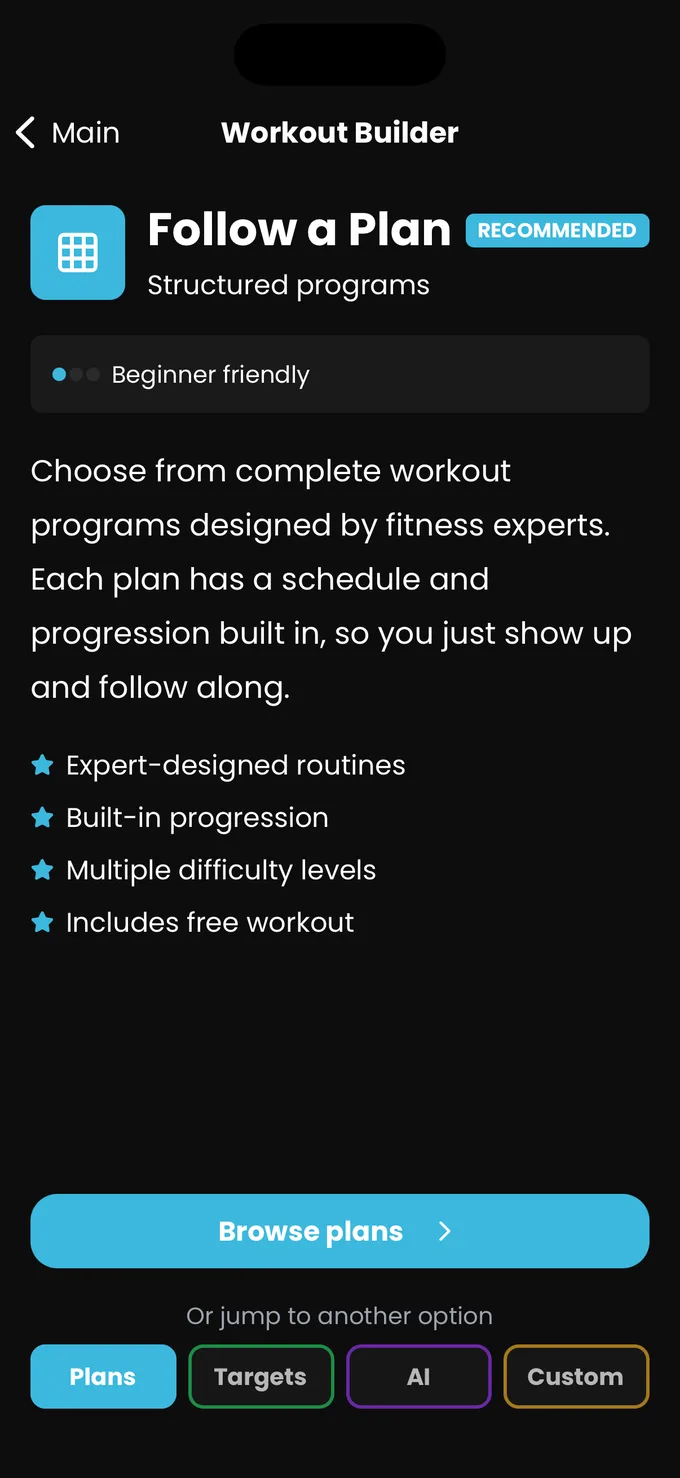
Follow a Plan
Ready-made programs: Starter Full Body, Push Pull Lower, Upper Lower, Bro Split, Glute Builder, an X3® program, and the free Habit Starter. Setup walks you through days, bands and an optional core mix-in.
Pick Targets
Choose the muscle groups you care about and the app generates fresh exercises for them, so you get variety without planning anything.
AI Generator
Describe what you want in plain language and get a workout back, built only from equipment your gym profile says you own. This one is a Pro feature.
Build Custom
Pick every exercise yourself, set the order, and chain supersets. Good if you already know exactly what you want to do.
Every workout can be scheduled to days of the week in its editor, which is what drives the day filter on the Workouts tab and your streak. The same editor holds the rep scheme, estimated duration, warm-up sets and automatic supersets.
Tell it what you own.
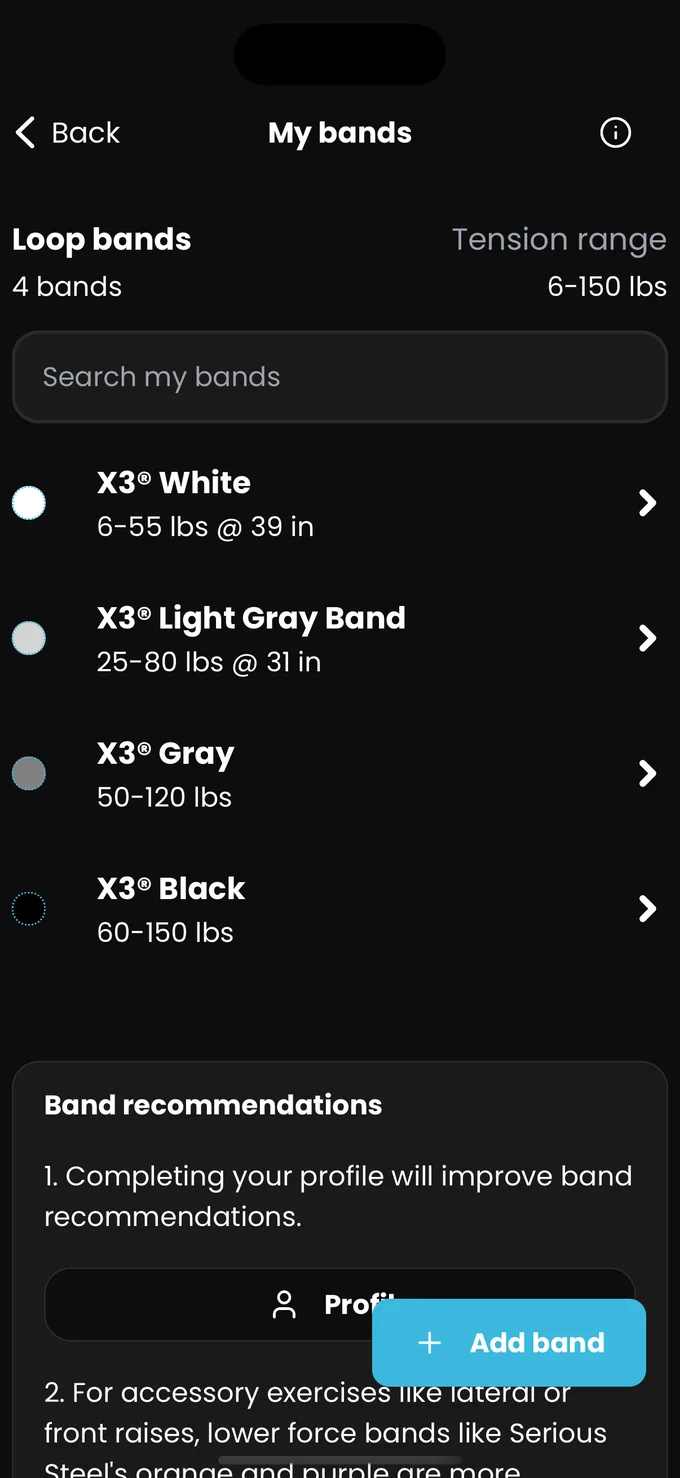
Rubber Bands is brand-agnostic. It does not sell you a set and it does not assume one. Everything the app recommends, and every progression it makes, is bounded by the bands on your list, so this is the setup step worth doing properly.
Browse Catalog
Pre-loaded sets from most of the major brands, with their real tensions and lengths. Find yours, tap the plus next to each band you own.
Smart import
Paste the product link or the description of your set and the app works out the bands, then asks you to confirm which ones to add.
Add manually
Name, type, length, colour and tension. Loop and mini-loop bands take a minimum and maximum, because a flat band gets heavier the further you stretch it. Tube bands take one number.
Band stacking
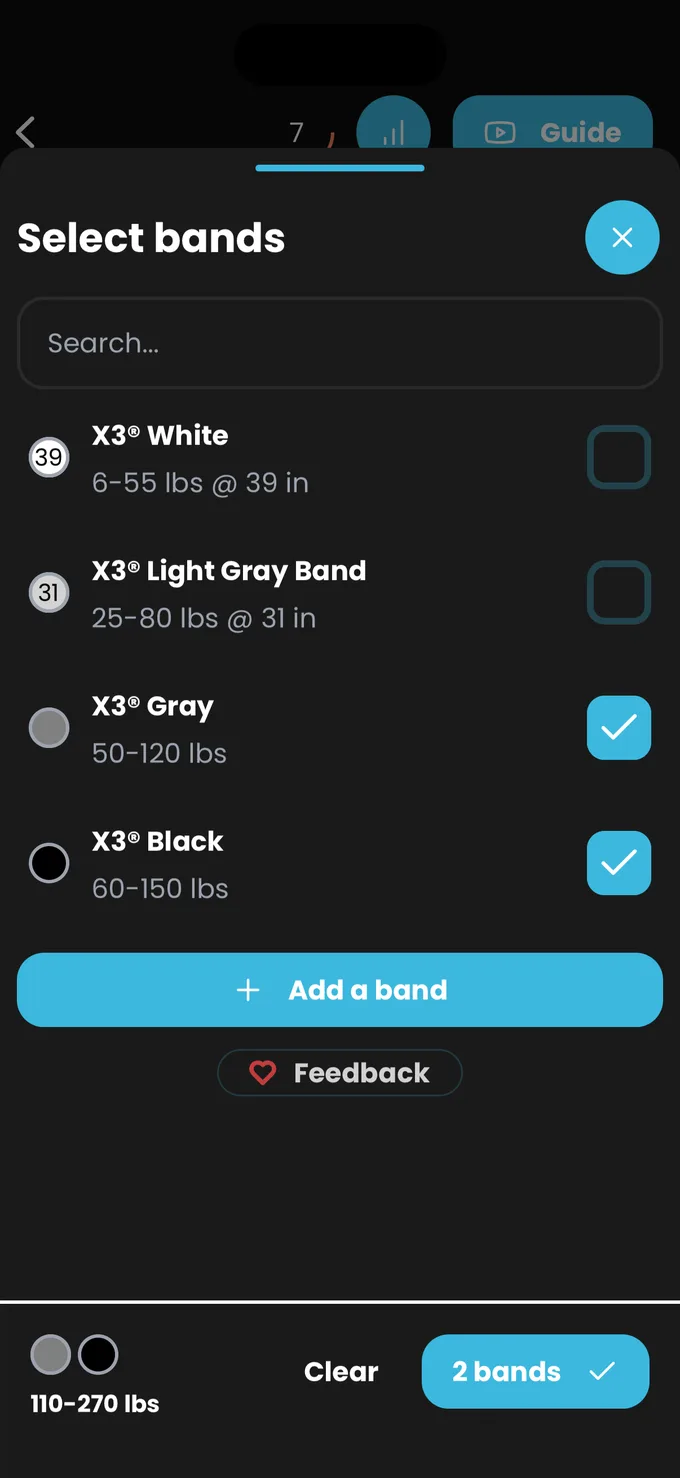
Switch it on under Advanced in your gym profile and you can put up to four bands on a single set. The picker keeps a running total for the stack.
Check the box, move on.
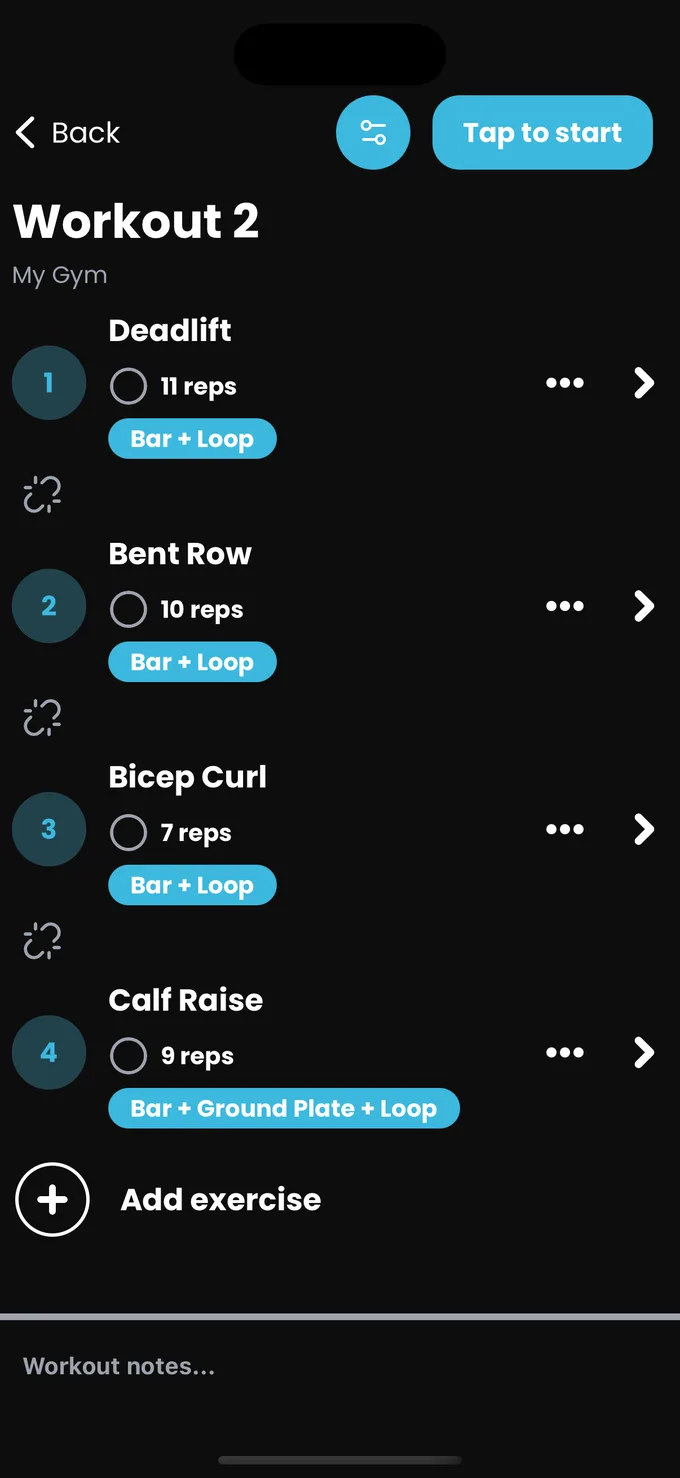
Open a workout and you get its exercise list. Tap Tap to start and the session clock begins, the screen stays awake, and each exercise opens onto a grid of sets. One row per set, one checkbox per set.
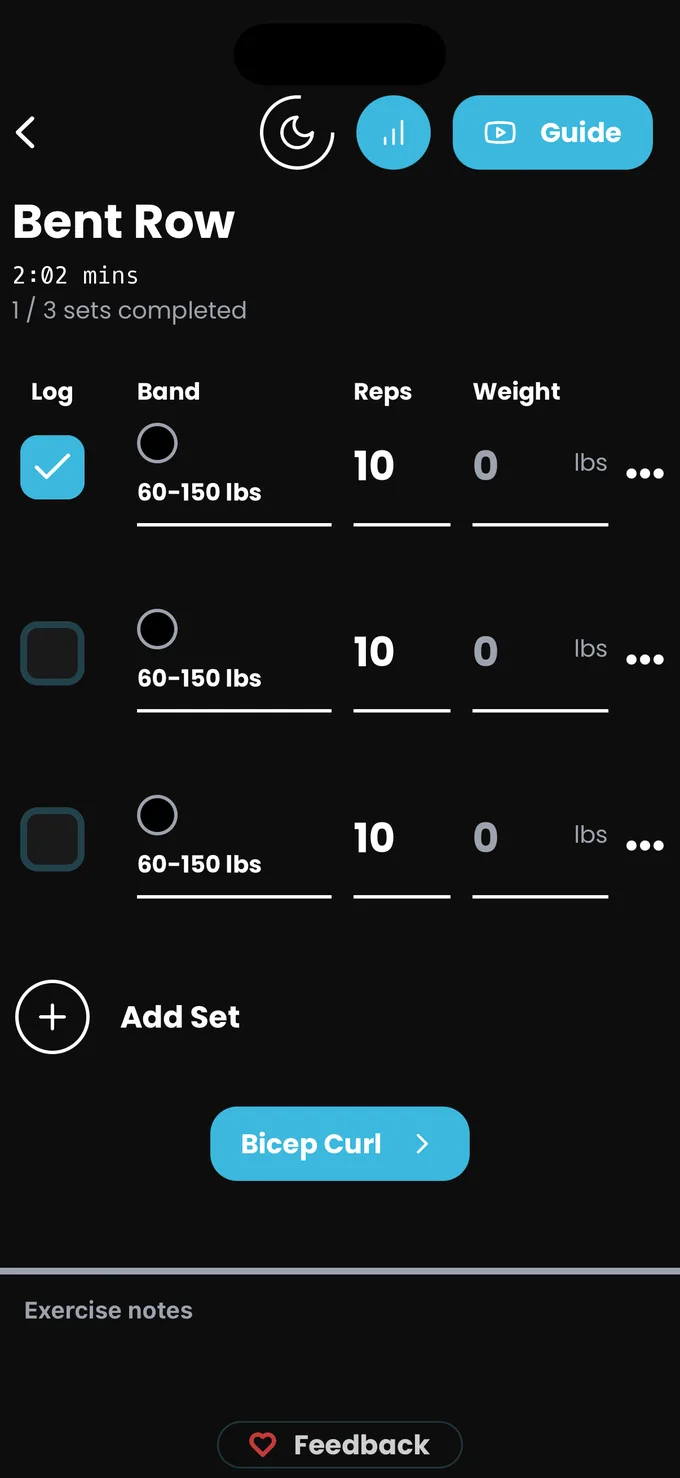
- Tap to start from the workout screen. The button becomes Finish for the rest of the session.
- Tap an exercise to open its sets. Drag rows on the workout screen first if you want a different order.
- Set your band. Tap the band cell and pick from your own bands. Long-pressing the cell switches between showing the band name and its tension.
- Do the set, then check the box. Adjust the reps first if you did more or fewer than the target. The rest timer starts by itself.
- Finish when you are done, rate how hard it felt, add any notes, and save.
Add Set and Log All
Add up to ten sets on the fly. If you rattled through all of them without touching the phone, Log All checks the lot at once.
Copy previous
In the set menu, alongside Set bands for all and Set bands for missing. The fastest way to fill in a set that matched the one before it.
Supersets
Tap the chain icon between two exercises to link them. Linked exercises use the shorter superset rest, and the next button carries a chain icon so you know you are still inside the block.
Warm-up sets
Turn them on in a workout's editor and compound band exercises get lighter lead-in sets, marked with a warm-up badge so they do not skew your numbers.
Timed exercises
Planks and holds open a countdown screen instead of a rep field, with separate left and right stages for unilateral work.
AMRAP and /side
AMRAP means log whatever you reached rather than a fixed target. The /side badge means the count is per side. Tap either badge in the app for the full explanation.
It counts your rest for you.
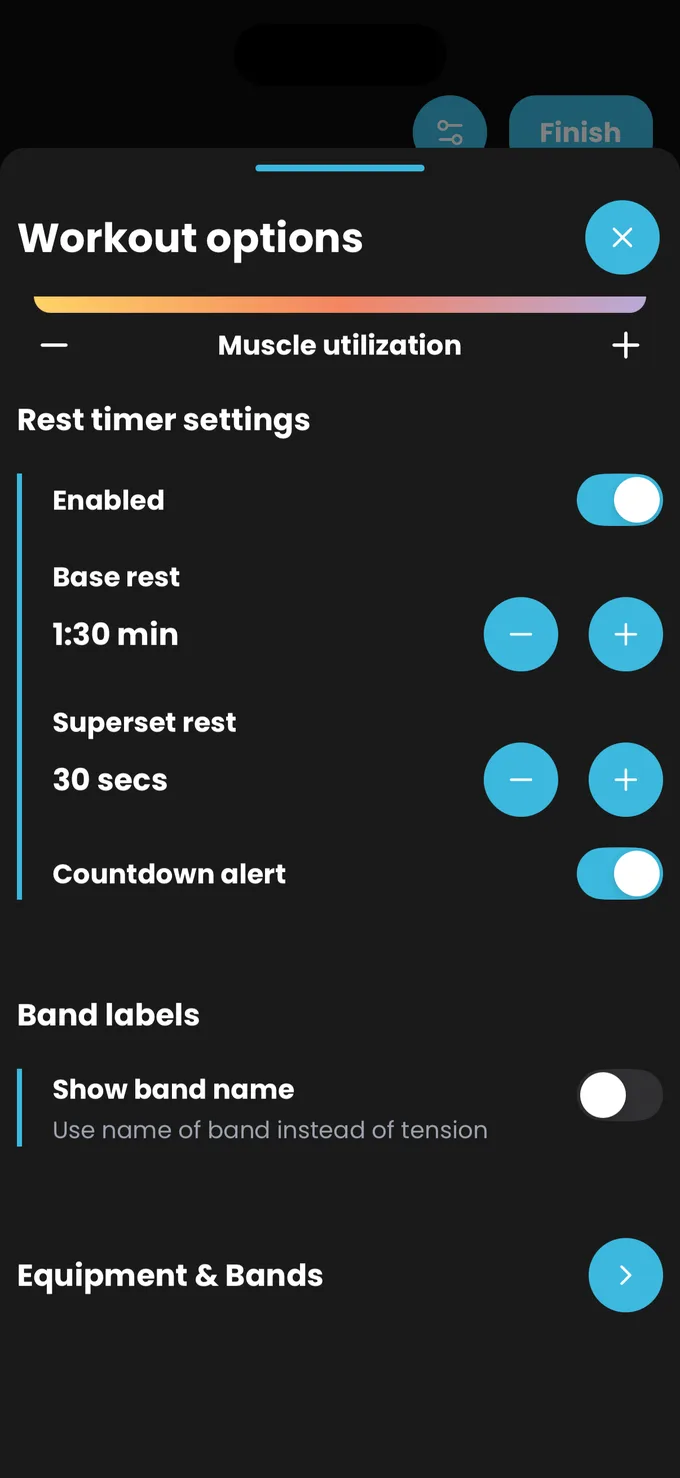
You never start the rest timer by hand. Check a set off and it begins, using the rest length that applies to that exercise. A dial appears in the header: a moon while you have more than a minute left, then a live count of the last sixty seconds.
Rest is set in three places, and the most specific one wins.
- Your gym profile holds the default. Settings, then Gym Profiles, then Rest settings. Set Base rest for normal sets and Superset rest for linked ones.
- Mid-workout, the gear icon opens Workout options, which has Rest timer settings. Changes there save back to the profile.
- A single exercise can override both. Edit the exercise in Settings and set a Custom rest timer under Advanced.
While it runs
Tap the dial for plus thirty seconds, minus thirty seconds, or End. A countdown sound plays in the last three seconds if Countdown alert is on.
If it stays silent
The finish alert is a notification, so it needs notification permission. The settings screen prompts you if permission is missing.
Your targets move without you asking.
You do not have to decide when to add a rep or move up a band. As you log sets, Rubber Bands adjusts your rep targets, and when you have earned it, moves you to the next resistance. It looks for the smallest sensible jump, including stacked combinations, and rescales your reps to match the new tension so the first session on a heavier band is not a wall.
Where you see it
A card on the exercise telling you it adjusted your reps and bands, or that it is time for more resistance. Nothing changes without being shown.
Overriding it
Type over any rep target you disagree with. If you would rather choose every target yourself, set the workout's rep scheme to I'll pick.
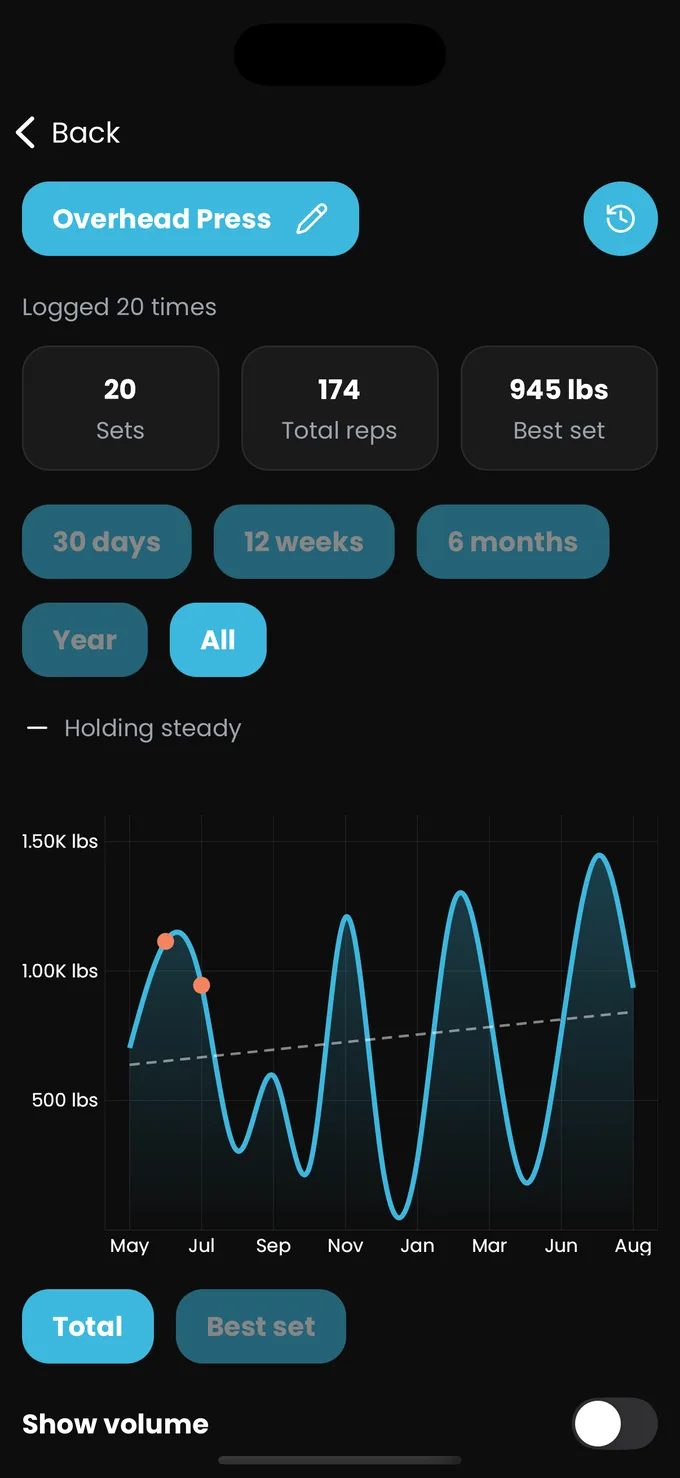
Tapping the chart icon on any exercise shows its history: how many times you have logged it, your best set, total volume, and whether you are trending up or holding steady.
What you have actually done.
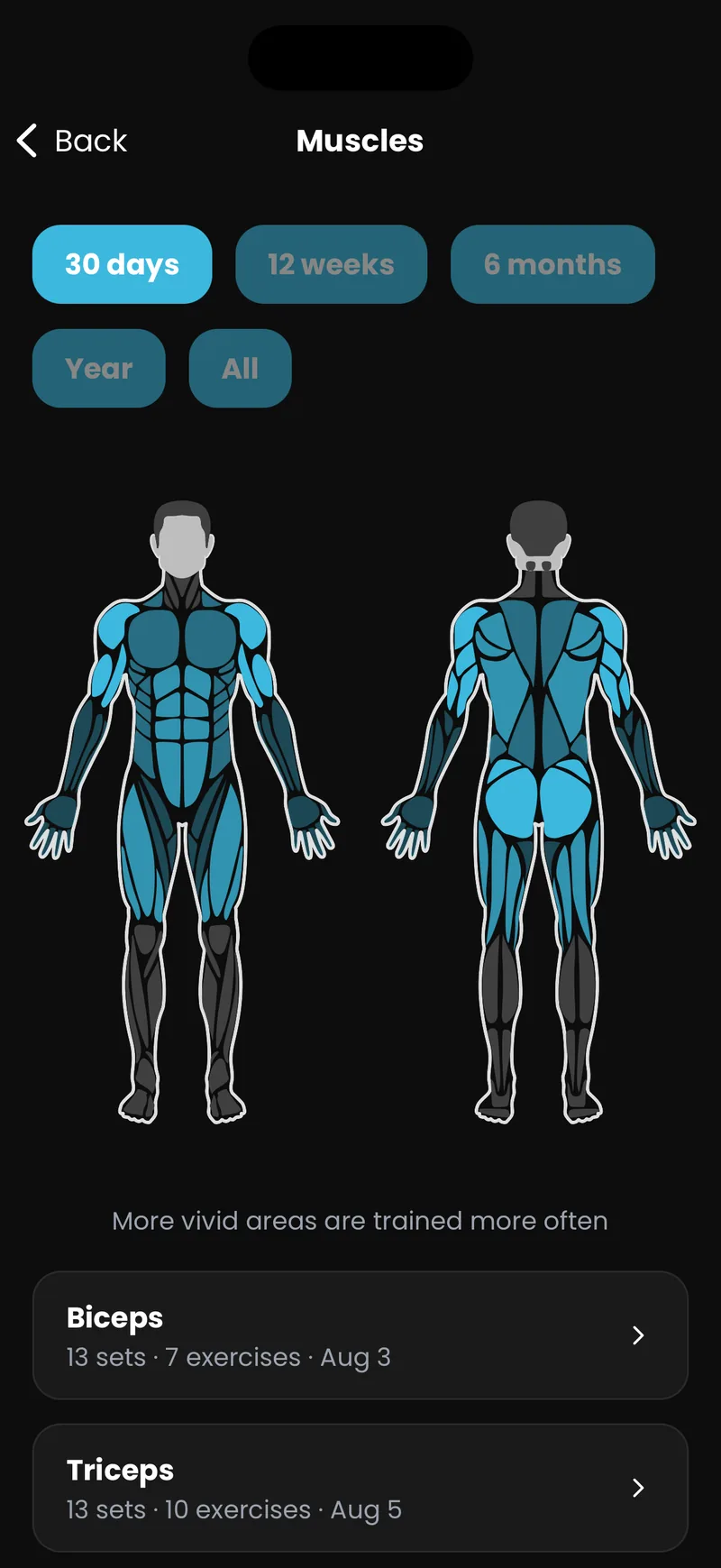
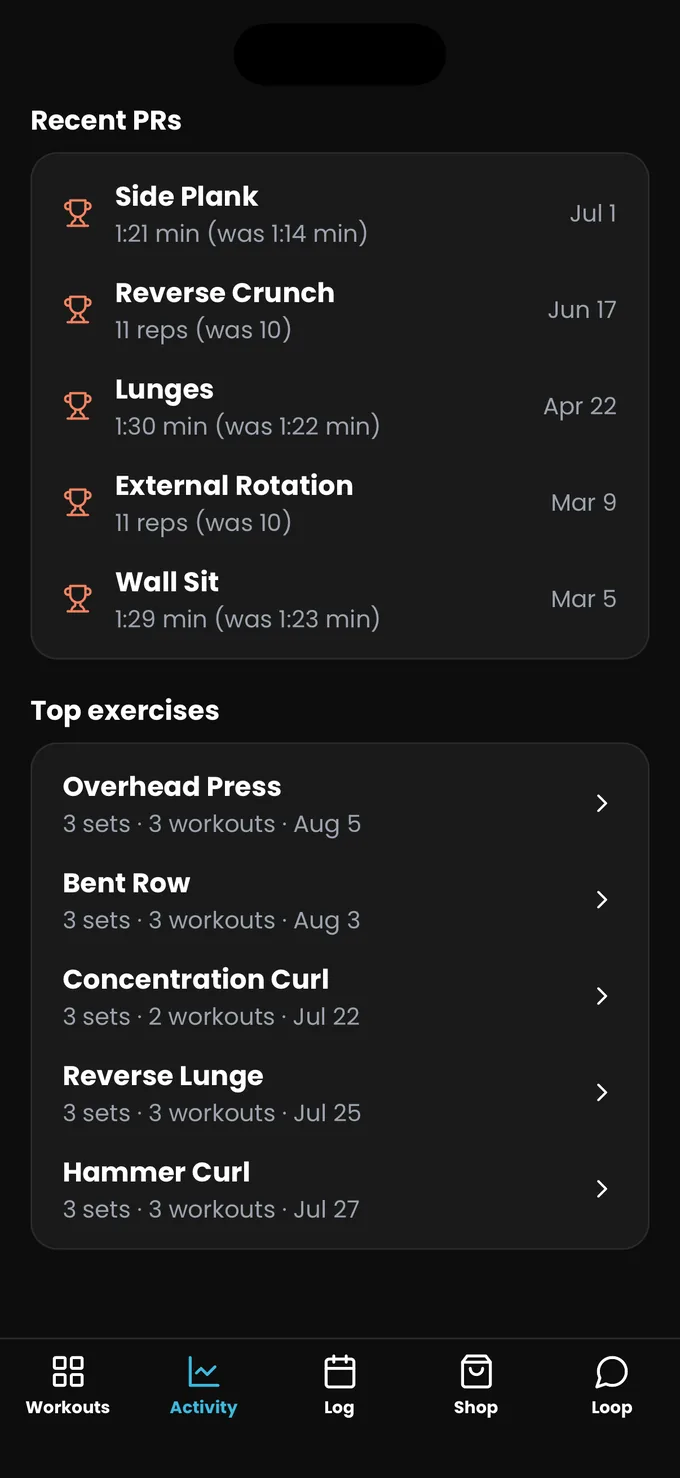
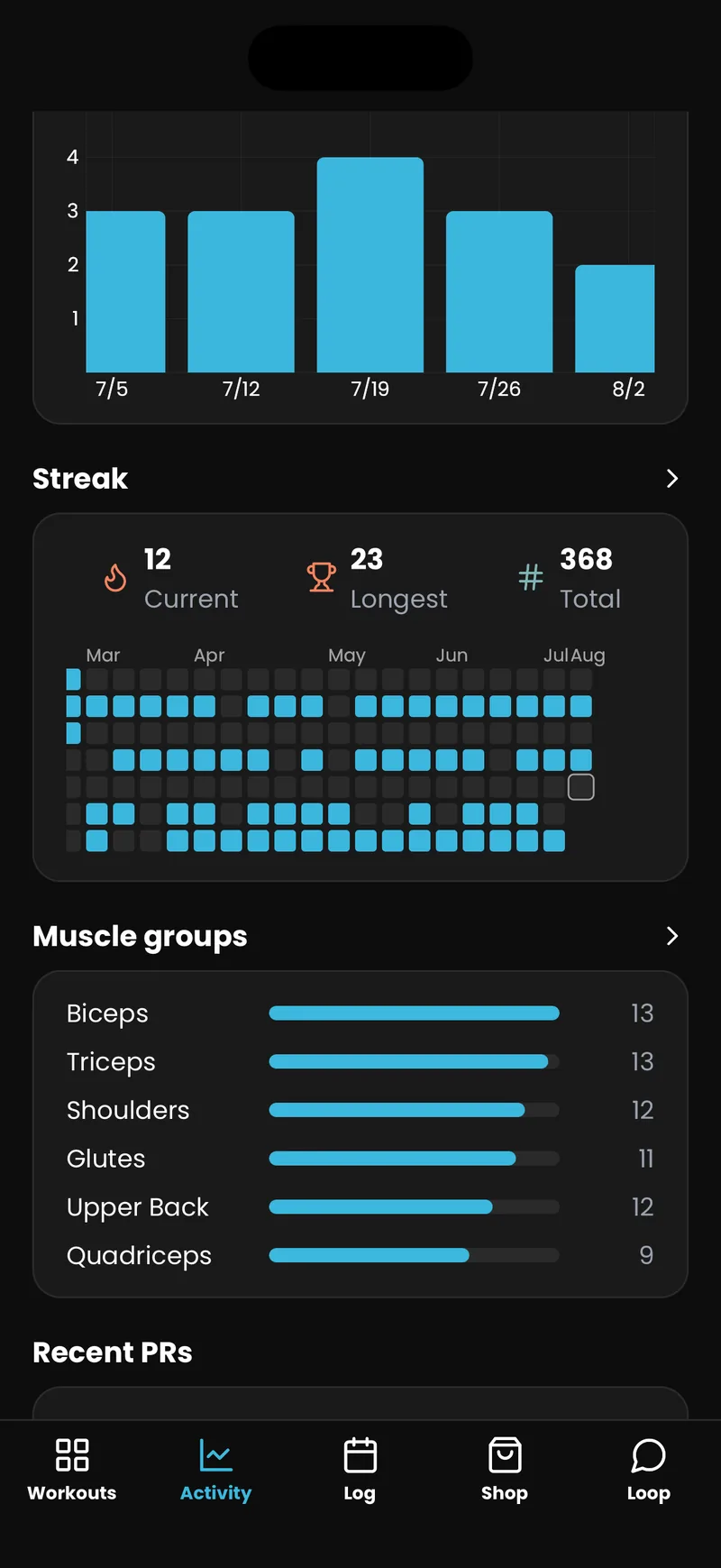
The Activity tab covers thirty days, twelve weeks, six months, a year or everything. Workouts, sets, time under tension and calories sit at the top, then the trend chart, your streak, muscle coverage, recent records and your most-used exercises.
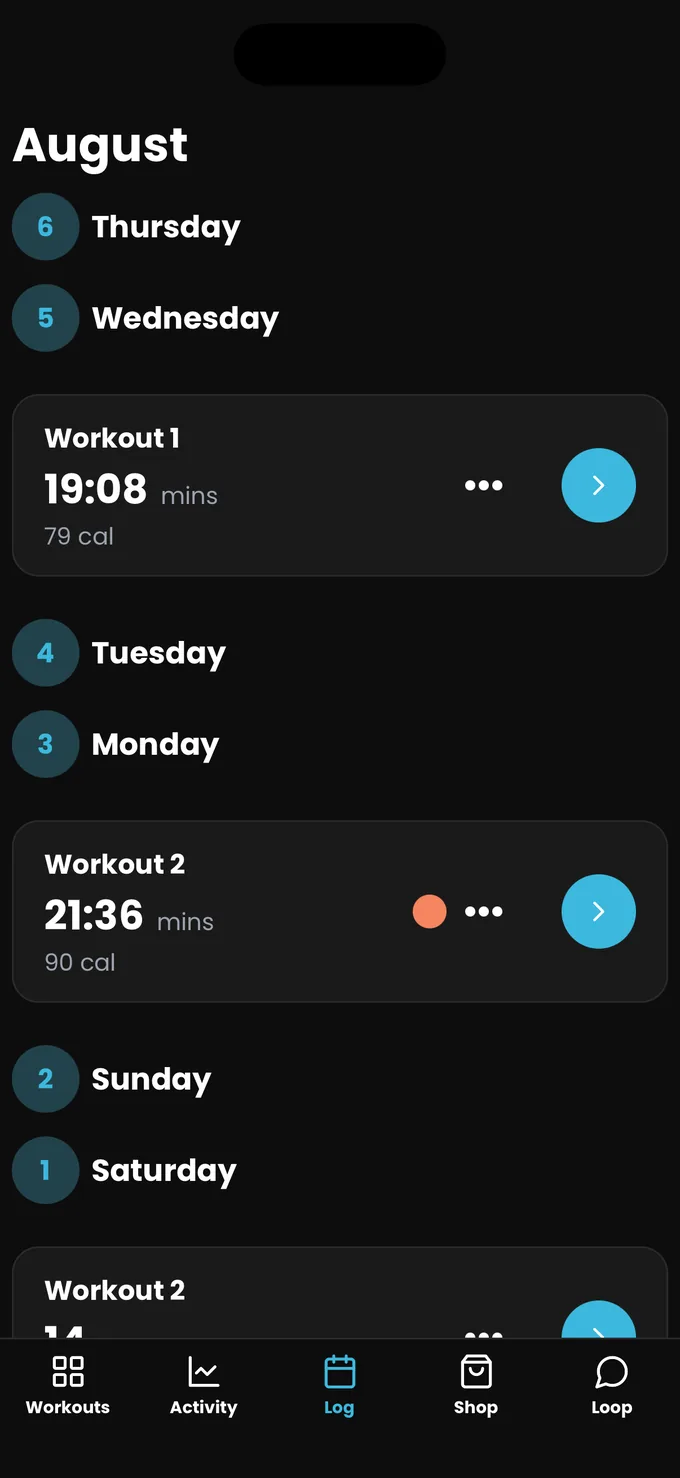
Records
More than just heaviest set. First time on an exercise, first time on a band, most sets in a session, longest workout, new streak record, workout milestones.
Streaks
Counted against the days you scheduled, so a rest day never breaks one. You can correct a streak by hand, or turn the whole thing off in Other settings if it is not motivating.
Body measurements
Chest, waist, hips, arms and legs, tracked over time with a trend for each, in Settings under Body Measurements.
Leave the phone in your pocket.
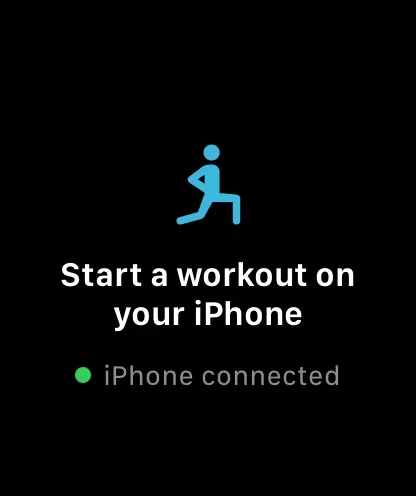
First, make sure the watch app is installed. It ships with the iPhone app rather than as a separate download, so if Automatic App Install is on it is already on your wrist. The watch app is a companion, not a second app to learn. Start the workout on your iPhone and the watch picks it up. Until then it simply says: start a workout on your iPhone.
- Install Rubber Bands on your iPhone first. The watch app comes with it.
- Open the Watch app on your iPhone. On the My Watch tab, scroll to Available Apps and tap Install next to Rubber Bands. If it is already under Installed on Apple Watch, you are done.
- Open Rubber Bands on the watch once. Keep the two devices near each other so they can pair up, then start a workout on the iPhone.
Log from your wrist
Swipe between sets, turn the Digital Crown to the reps you actually hit, and tap Log Set. Add Set works there too.
Bands and timers
Pick bands on-wrist, including stacks with a running total, and watch the rest chip count down. Timed exercises tick on the watch as well.
Heart rate
A real workout session records heart rate continuously, closes your Activity rings, and saves the workout to Apple Health.
Finish there
Rate how hard it felt and save without touching the phone. That rating feeds into how your next workout is built.
The wrench, top right.
Most of the app's power is in Settings, reached from the wrench on the Workouts tab. These are the ones worth knowing about.
Gym Profiles
A named setup: which equipment you have, how long a session should run, rest lengths, band stacking, and a band limiter for restricting a profile to part of your collection. Keep one for home and one for travel and switch between them from the home screen.
Theme
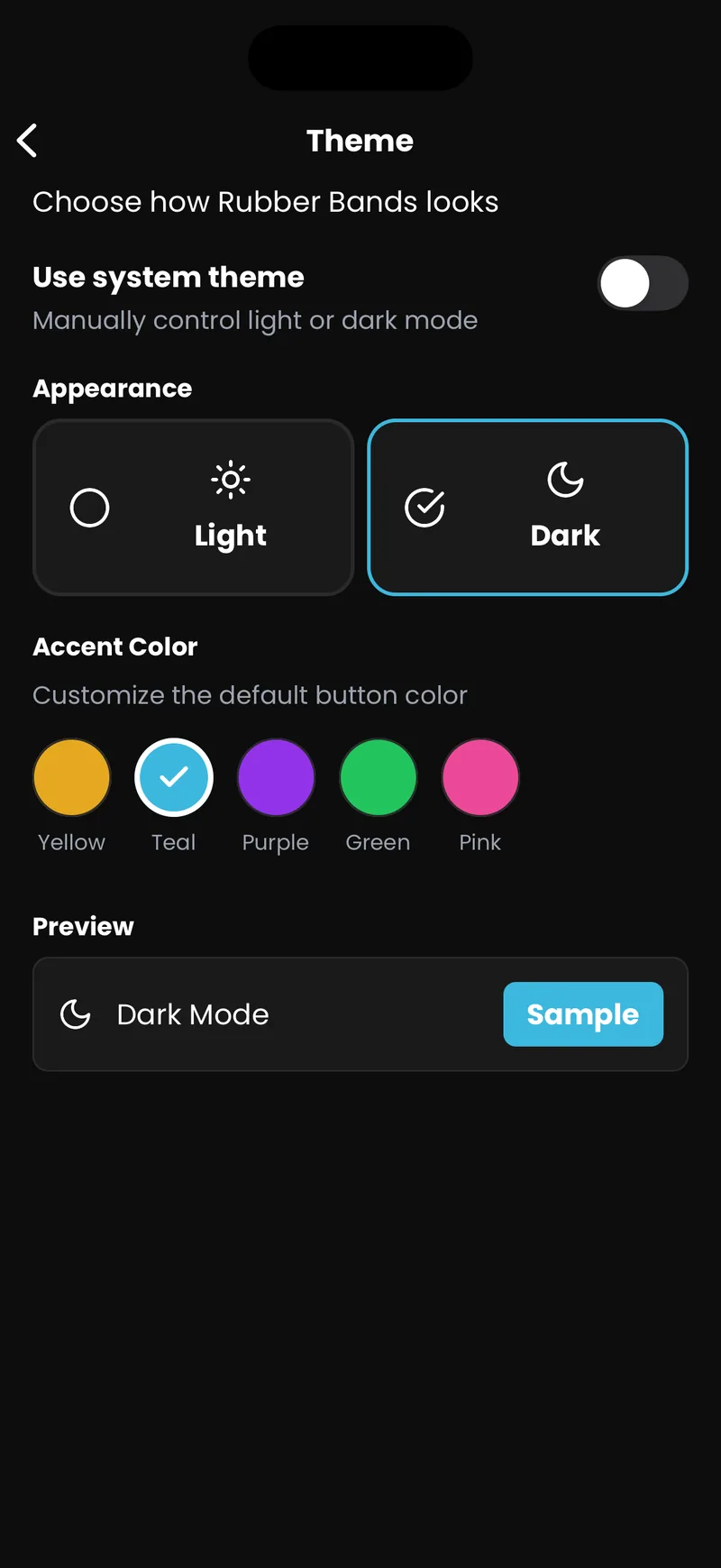
Follow the system, or force light or dark. Five accent colours to choose from, with a live preview.
Focus Exercises
Pick a lift you want to prioritise, choose its days, and run a focus cycle that keeps it in rotation until the cycle ends.
Reminders
A nudge at a time you choose, on the days you scheduled workouts.
Exercises
Filter the library by muscle, equipment or target, edit any exercise, or add your own. Custom exercises get used by the workout generator like any other.
Connected apps
Apple Health on iOS, Health Connect on Android, and Strava. Finished workouts go across automatically once connected.
It is on your phone, and it is yours.
There is no account and no server holding your training history. It lives in a database on the device, which is why the app works with no signal, and why moving phones means taking a file with you.
Export backup
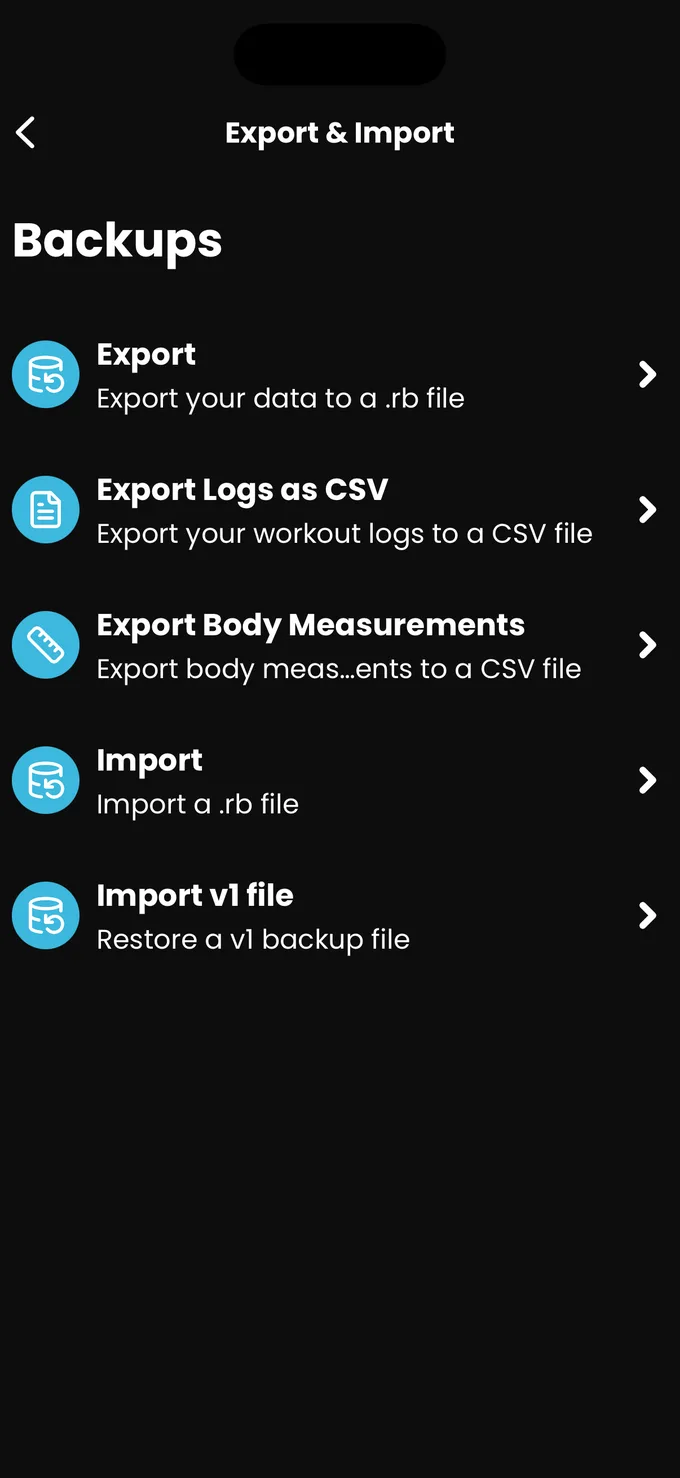
One file with your workouts, bands, exercises, logs and settings. Import it on a new phone from the same screen. This is the way to move devices.
Export Logs as CSV
Your whole training history as a spreadsheet, for your own charts or for a coach. Body measurements export the same way.
Settings, then Backups. Worth doing occasionally even if you are not switching phones.
What costs money, and what does not.
Free
The Habit Starter workout is free for as long as you want it, and you get a full workout to try before deciding. Logging, the rest timer, your bands, the Activity dashboard, records and streaks all work on the free tier. The one limit is that the free workout cannot be edited.
Pro
Unlimited workouts with automatic progression, the AI workout generator, exercise guide videos, and the freedom to change any workout. Monthly or annual, with a free trial. Restore Purchase brings it back after a reinstall, and Subscription status in Settings is where you manage or cancel it.
When something is not doing what you expect.
- My rest timer never goes off. What do I check?
- Two things. First, rest has to be switched on for the gym profile you are training with: open Settings, then Gym Profiles, edit the active profile and turn on Rest settings. Second, the countdown finishes with a notification, so Rubber Bands needs notification permission from iOS or Android. If permission was declined, the rest timer settings screen shows a prompt to enable it in system settings.
- My workouts keep including exercises for equipment I do not own.
- Automatic workouts are built from the equipment listed on your active gym profile. Open Settings, then Gym Profiles, edit the profile and switch off anything you do not have in the Equipment section. Turning off a door anchor or a pull-up bar removes every exercise that needs it from future workouts.
- Some of my bands do not appear when I go to pick one.
- Either the band is archived, or the gym profile has a band limiter set. Open Settings, then Gym Profiles, edit the profile and check Advanced for the band limiter, which restricts a profile to a subset of your bands so a travel setup can differ from a home setup. Turning on Show excluded bands makes the hidden ones visible again in the picker.
- How do I use two bands at once on the same exercise?
- Turn on Band stacking under Advanced on your gym profile in Settings, then Gym Profiles. Once it is on, tapping the band cell on a set lets you select up to four bands, and the sheet shows a running total for the stack. Rubber Bands treats stacked combinations as available resistance levels, so progression can move you to a stack when it is the smallest sensible jump.
- Can I change the reps the app picked for me?
- Yes. Tap the reps field on any set and type the number you want. If you would rather choose every rep target yourself from the start, open the workout in Settings and set its Rep scheme to I'll pick instead of Guided.
- What do AMRAP and /side mean on a set?
- AMRAP stands for as many reps as possible, so you log the number you actually reached rather than hitting a fixed target. The /side badge marks a unilateral exercise, where the rep count applies to one side and you repeat it on the other. Both appear as small badges next to the rep input, and tapping the badge explains it in the app.
- How do I reorder, replace or remove an exercise?
- On the workout screen, drag an exercise by its row to move it up or down. Tapping the three-dot menu on an exercise gives you Replace exercise, Remove from this workout, and a Frequency control that tells the app to show that exercise more often, less often, or never again.
- How do I move my training history to a new phone?
- Open Settings, then Backups, and tap Export backup on the old phone. That produces a single file with your workouts, bands, logs and settings. Install Rubber Bands on the new phone and use Import backup on the same screen. The same screen also offers Export Logs as CSV if you want your history in a spreadsheet instead.
- Does Rubber Bands work without an internet connection?
- Yes. Your workouts, logs and progress are stored in a database on the phone itself, so logging a session in a basement or on a plane works normally. Only the optional extras need a connection: AI workout generation, the Loop assistant, and sending completed workouts to Strava.
- Do I need to create an account?
- No. There is no sign-up and no login. Your training data stays on your device, which is also why moving to a new phone uses an export file rather than a server sync.
- Where do I manage or cancel my subscription?
- Open Settings and tap Subscription status, which opens the subscription management screen where you can see your current plan and cancel. Restoring a purchase after reinstalling is done with Restore Purchase on the upgrade screen.
Still stuck?
Ask Loop, the assistant built into the app, or write to a human. Support mail is read by the person who makes the app.